How to Make Your Own Yoto Cards (and Save a Fortune)
Yoto cards add up fast. Here’s how we make our own using Yoto make your own cards, charity shop CDs, free audiobooks and Grandpee’s bedtime stories.
This post contains affiliate links. If you buy through them, I may earn a small commission at no extra cost to you.
When we finish a book in our house, there’s a little ceremony.
The last page gets read out loud. Someone usually cries (often me). And then a new Yoto card appears.
It started as a reward system, if I’m honest. Finish the book, get the card. But it’s turned into one of my favourite family rituals. The kids hold the new card like a trophy, slot it in and listen to the whole story all over again. And again. And again.
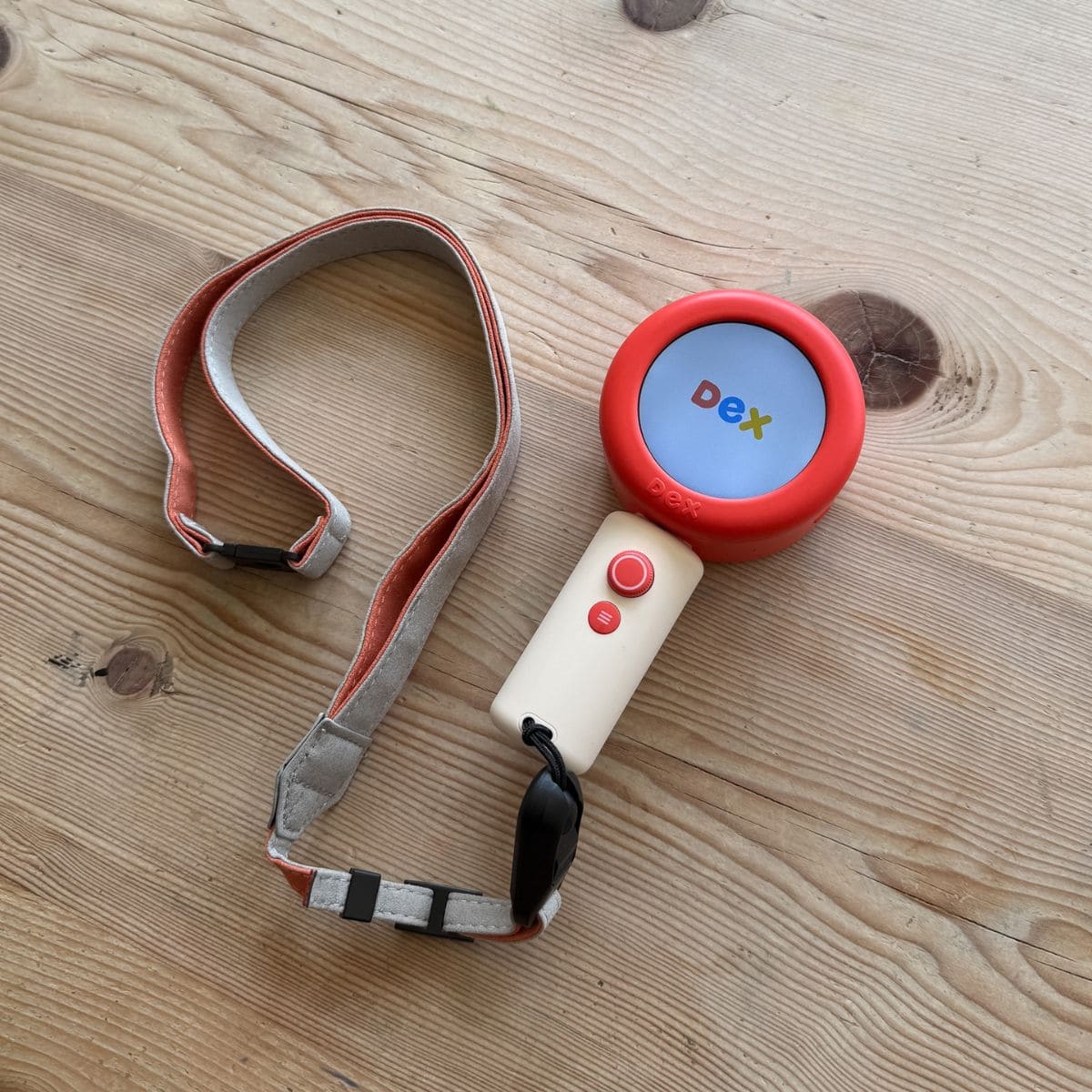
Our Yoto players are some of the best things we’ve ever bought. You can read my review here.The player itself is a reasonable price.
Then I started buying the cards.
A single story card is around £10. A full series can be £45. With four children and a lot of finished books, that maths gets silly very quickly.
So we started to make our own Yoto cards. They cost a fraction of the price, and we can put things on them that Yoto doesn’t sell at all. Including Grandpee’s favourite bedtime stories.
Why Are Yoto Cards So Expensive?
Story cards are licensed audiobooks, so you’re paying the publisher, the narrator and Yoto. All of that adds up.
A make your own card (or MYO card) is a blank Yoto card. You link it to your own audio in the Yoto app, and it plays on the Yoto Player or Yoto Mini like any shop bought card.
A pack of 5 blank Yoto cards is £12.99 on the Yoto website. That’s five cards for roughly the price of one and a bit story cards.
And they’re reusable. You can update the content whenever you like, so the card that held nursery rhymes for a toddler can become a chapter book a few years later.
You can also link a MYO card to any content in your Yoto library, including ready-made Yoto cards. That’s useful for replacing lost cards, which has been known to happen in our house.
Where Do You Find the Audio?
This is where it gets fun! We get ours from a few places.
CDs
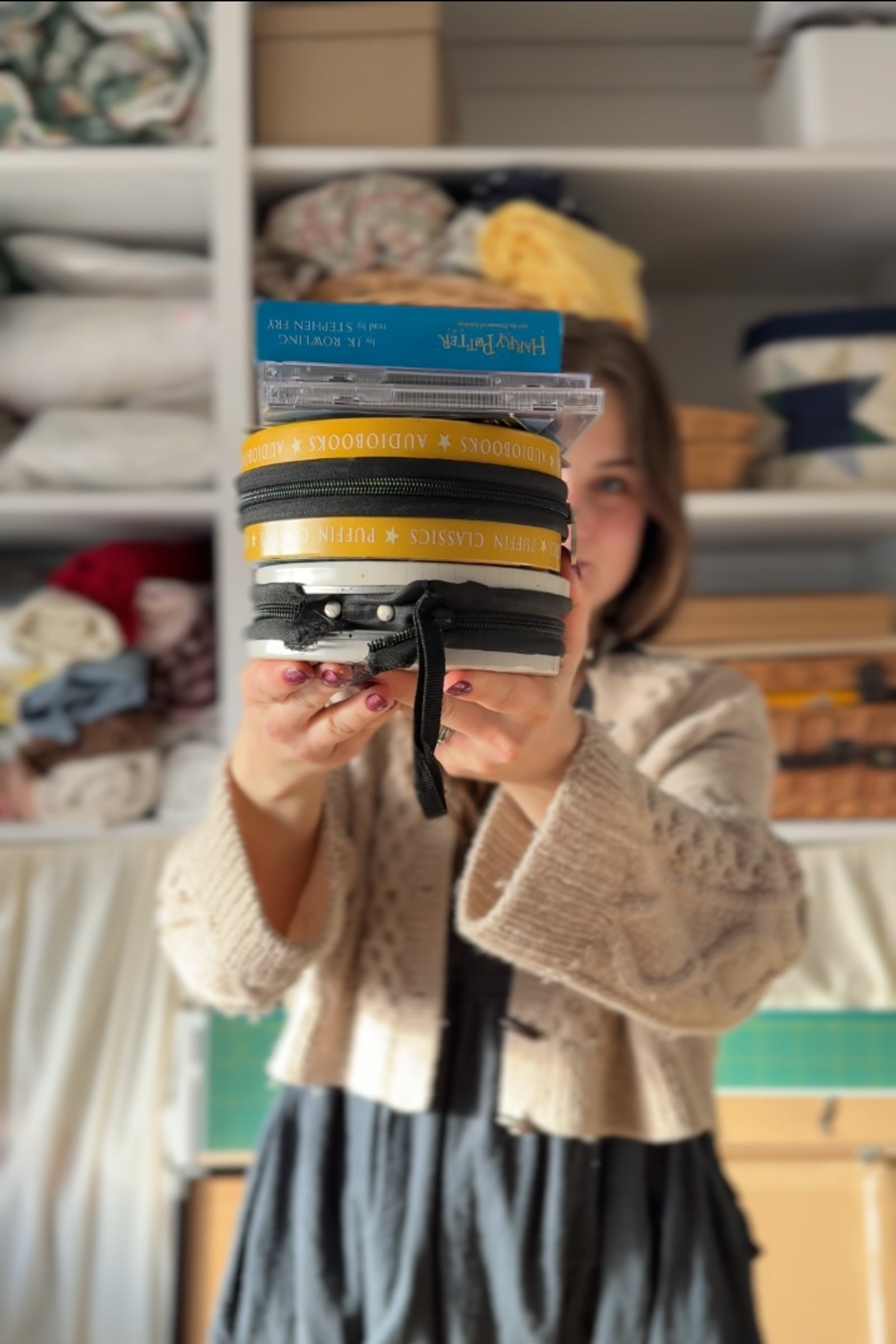
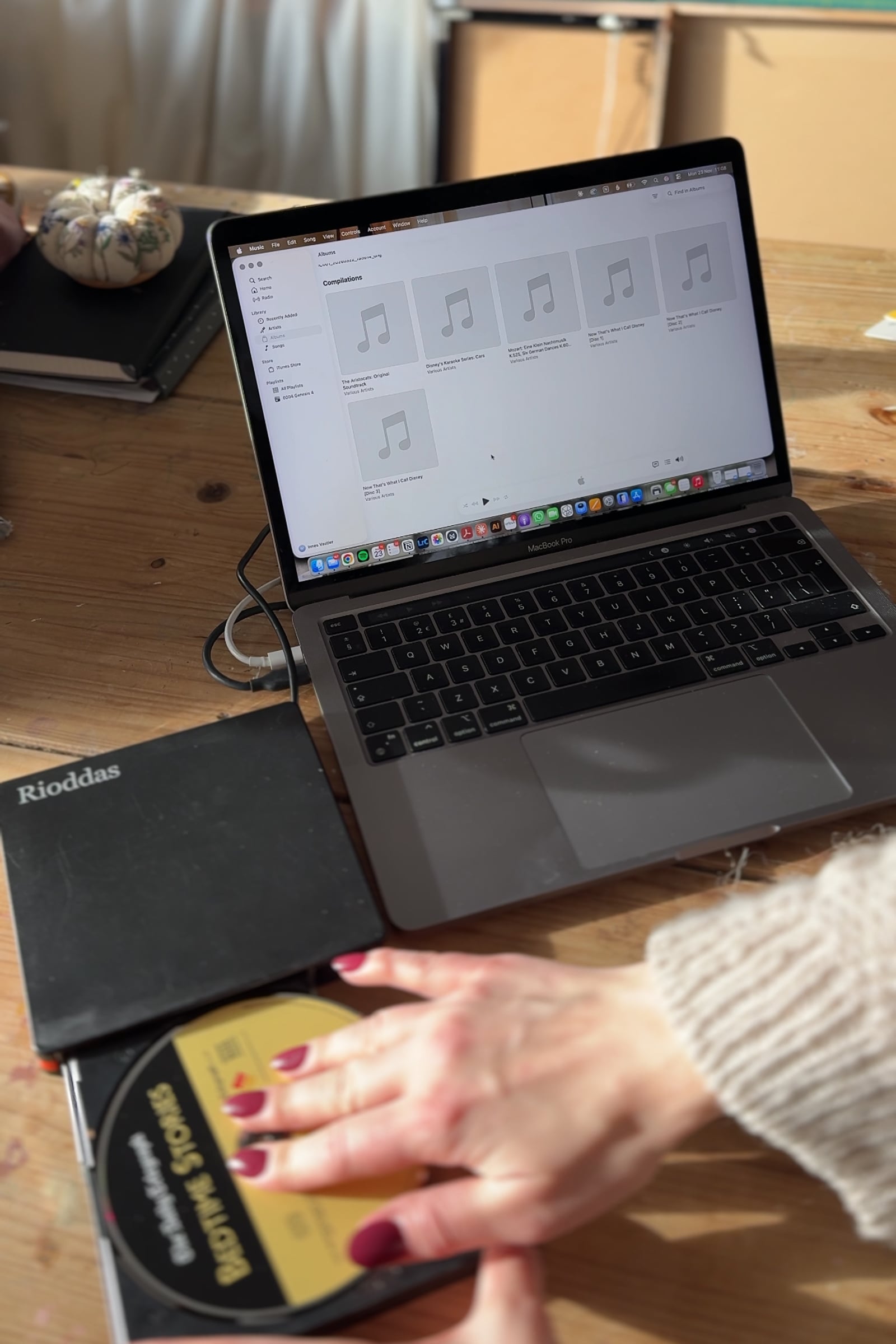
Charity shops and Vinted are full of children’s audiobooks on CD, and they’re far cheaper than buying the MP3s. You’ll need a little USB CD drive to get the audio off the disc and onto your laptop.
Doing this took me straight back twenty years, to loading up my first iPod. Very nostalgic.
Publishers Websites
Some audio is really hard to find on CDs, in which case we head to the publishers website for audio books. Lithos Kids is one of our favourites. They have free audiobooks available at certain times of year, plus printable card covers to go with them.
Story Warren sells their Green Ember series (one of our faves) as MP3 downloads. They give away printable labels sized for MYO cards too.
The Yoto App
The Discover tab is full of free podcasts, and every now and then there’s a free audiobook. You can link any of it to a MYO card.
Your Own Voices
Some of my kids’ favourite cards have no shop price at all. Get grandparents to record bedtime stories straight into the app. Ours have Grandpee reading their favourite picture books, and they play them on repeat.
Friends
Yoto lets you share playlists, so friends send their recordings our way too.
How Do You Actually Make One?
Yoto’s own guide here is good if you want the official version. Here’s how we do it, step by step.
Step 1: CREATE YOUR AUDIO
If you’re using a CD, load it on to your computer. Or record your audio in the Yoto app.
Before you upload anything to Yoto, put your tracks in order. Rename your MP3 files with numbers (01, 02, 03) so they load in the right sequence.
This is important. Shuffling chapter 14 back into place after upload is a fiddly job.
Step 2: Make a Playlist in the Yoto App
Open the Yoto app, go to your library and choose Make Your Own. Tap to create a playlist and upload your audio files from your phone.
If everything is on your laptop, use the Create page on the Yoto website to upload the files on your computer instead.
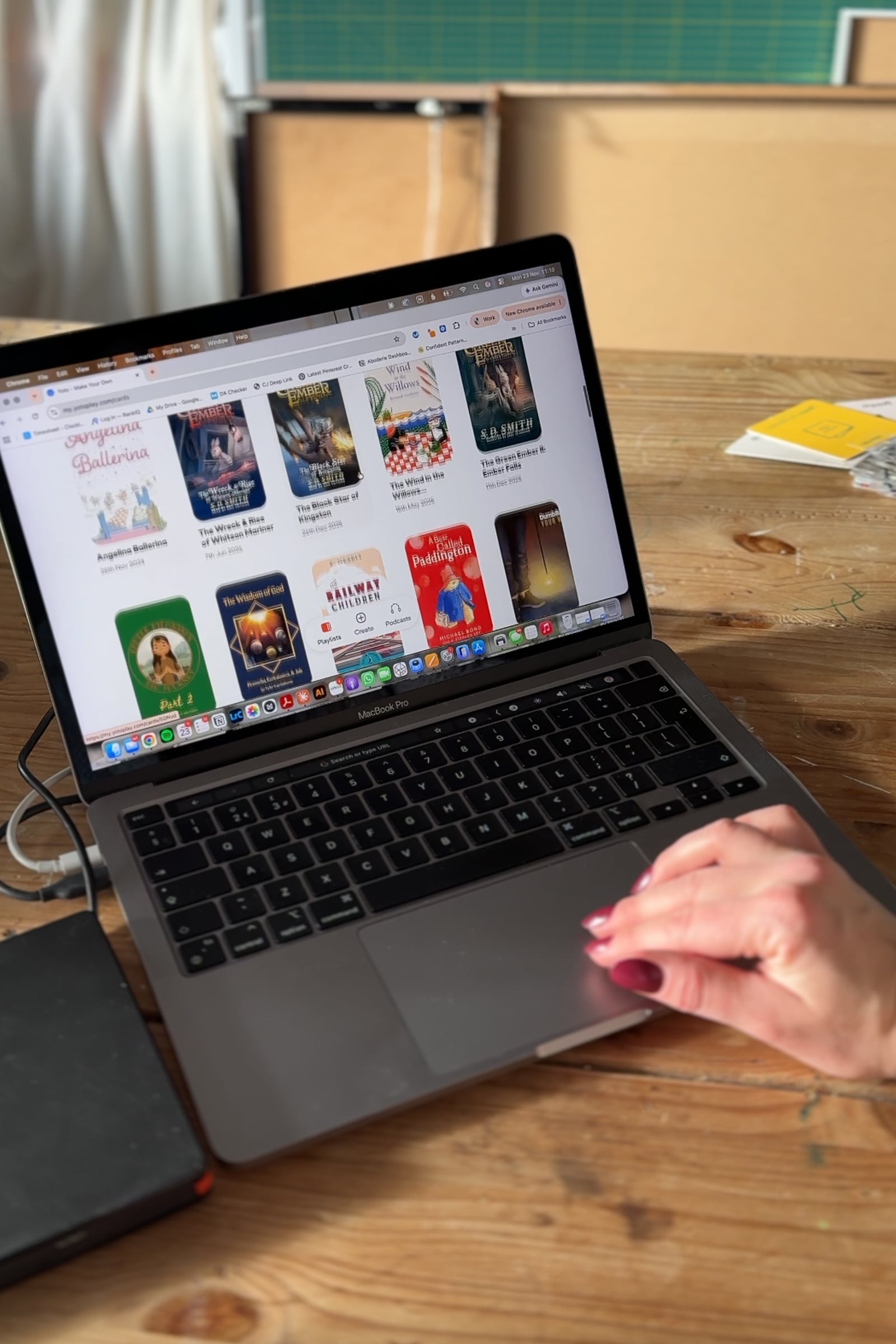
Step 3: Add Track Names and Pixel Icons
Give each track a proper name, so you can find your place.
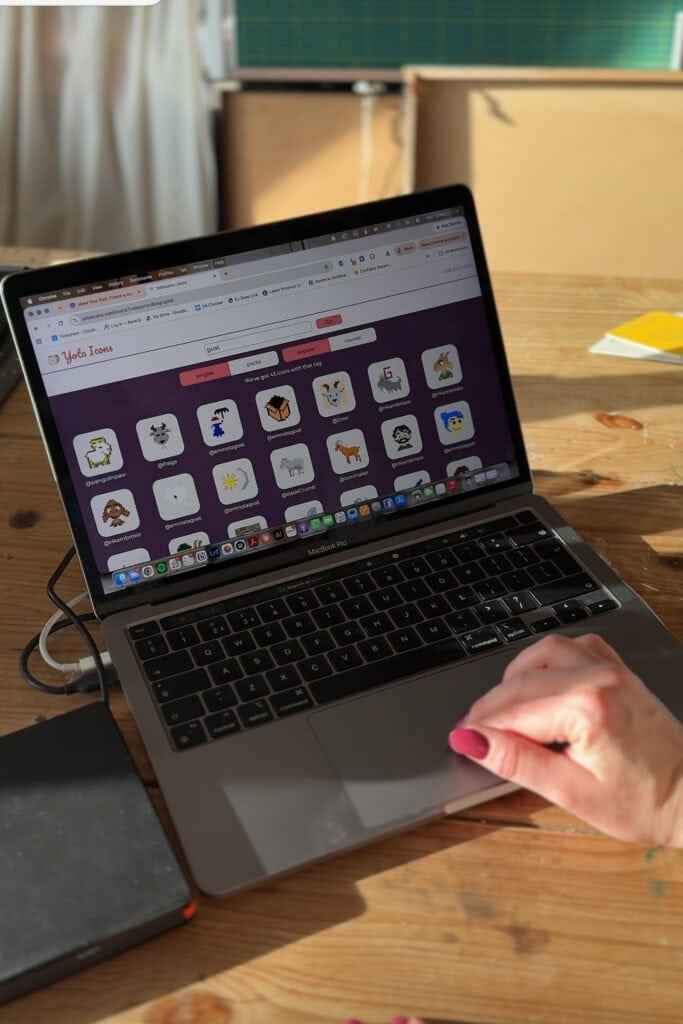
Each track can also have a tiny pixel picture that shows on the player’s screen. Drop in any image and Yoto will turn it into a pixelated icon, or browse the Yoto Icons website, where people share thousands of them for free.
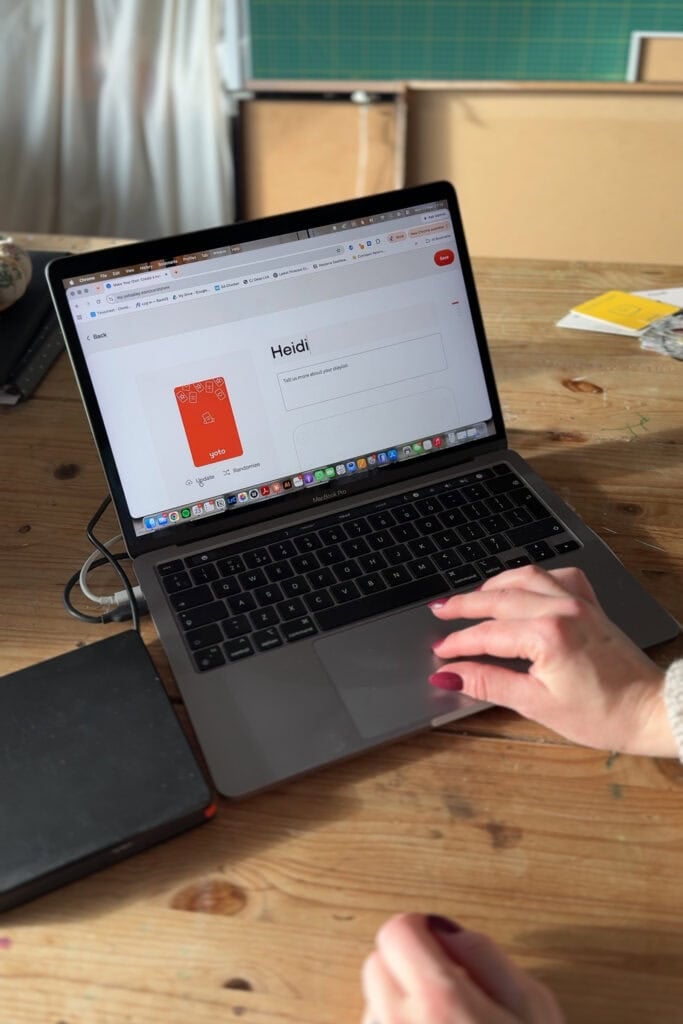
Step 4: Link to a Card
Open your playlist, tap the three dots and choose Link to a card. Pop your blank card into the player and confirm.
Making the Card Covers (the Best Bit)
A blank card works perfectly well. But the cover is what makes it feel special.
Lithos Kids and Story Warren both have free printable covers for their audiobooks. Print, trim and tape them on with sellotape.
For everything else, we make our own. Grandpee’s cards get a photo of Grandpee!
You can get a copy of our Canva Yoto card template here.
Our Little Yoto House Rules
Book First, Then the Card
We really want our kids to read the book (or have it read to them) before they listen. The card is the ritual at the end, not a shortcut.
One Card Is the Library Card
We keep one MYO card linked to whatever they fancy from our Yoto library, and the kids can switch it whenever they like.
Everything Lives on a Ring
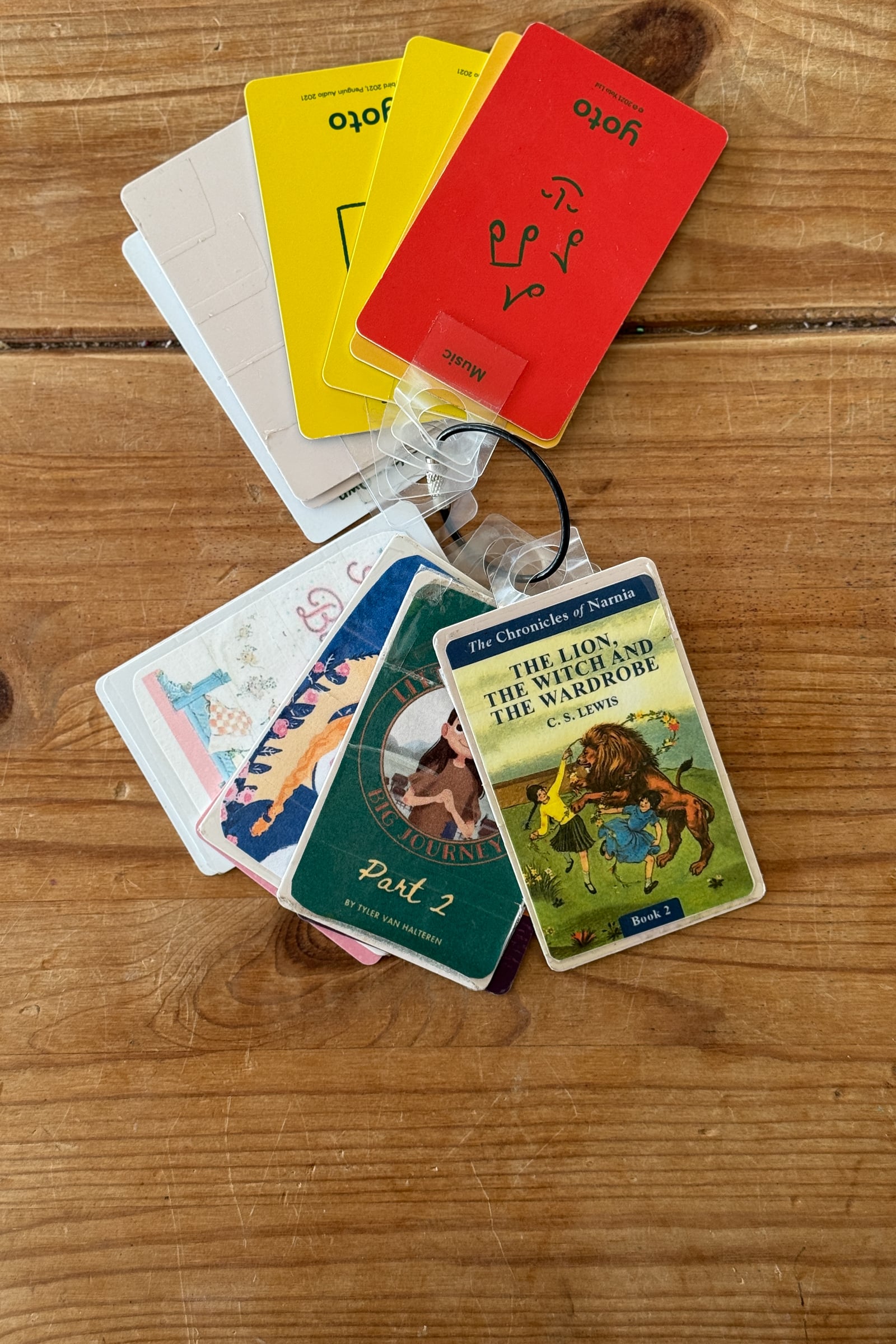
Our cards are stored on a ring with tabs, so each child’s cards stay together and nobody loses book three behind the sofa.
Sew a Personalised Banner
(No New Fabric Required!)
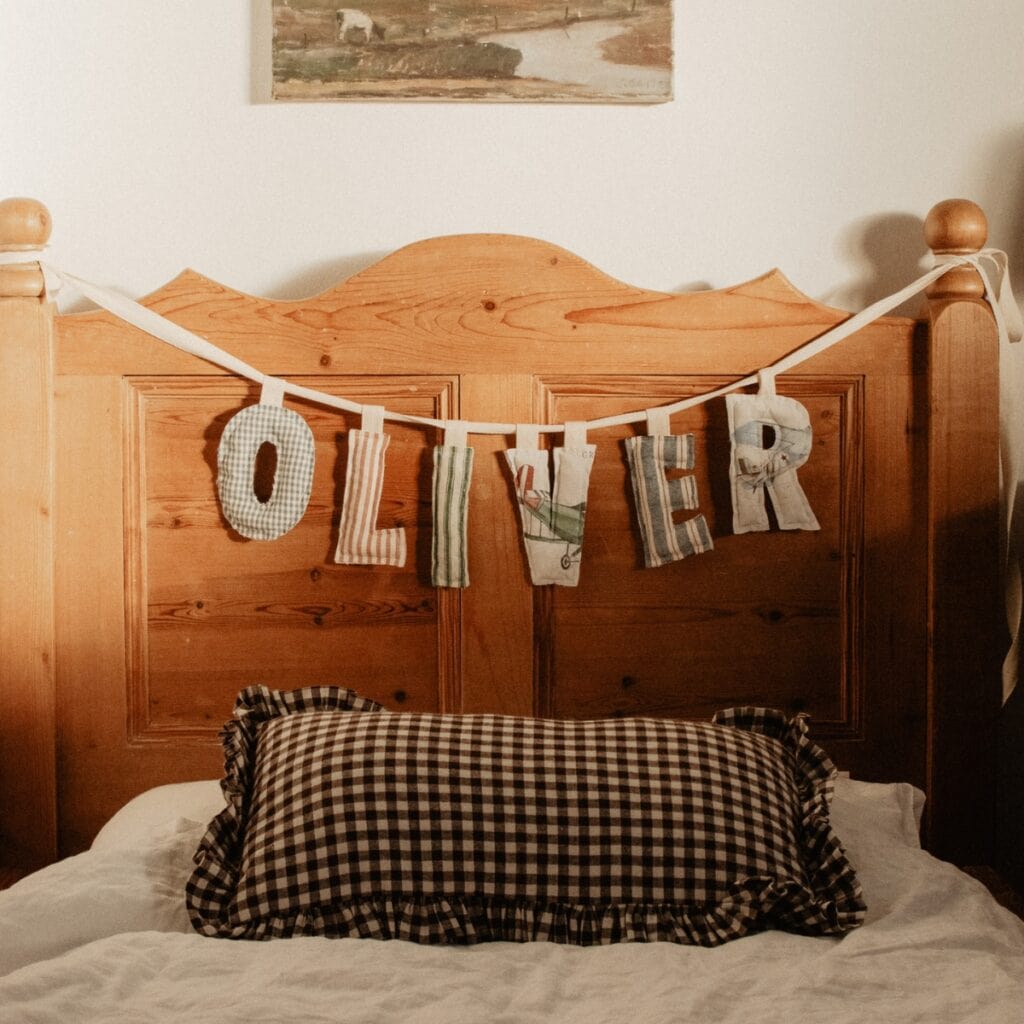
A clear, beginner-friendly pattern that teaches you how to transform your fabric scraps into a cheerful keepsake.
Yoto Make Your Own Card FAQ
How Many Tracks Can a MYO Card Hold?
You can store up to 100 tracks or 500MB of audio content on each card. That’s plenty for most chapter books, though a long series might need one card per book.
Can You Reuse a Make Your Own Card?
Yes, as many times as you like. Just link a different playlist to it in the Yoto app.
Are Yoto Cards Safe for Children Under 3?
Yoto says children under 3 should only use the cards and players with adult supervision. The cards are small enough to end up in a mouth, so keep the little ones supervised.